The money diary that fills itself in.
Pay with Apple Pay or Octopus, get a bank notification, receive an email bill — DinoWallet writes it down, with the right shop, amount, currency and category. Everything is read on your iPhone.
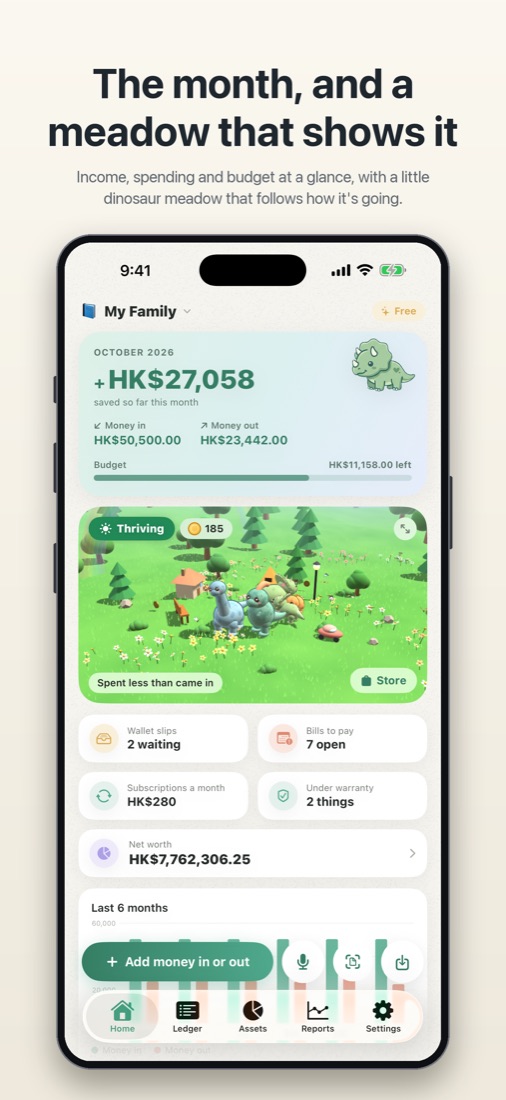
Set it up once
Payments file themselves.
Add a Shortcut, tap Allow, and leave it. From then on your spending arrives in the book on its own — and the same payment is never counted twice.
- Apple Pay and OctopusShop, amount and currency (HKD, USD, JPY, EUR…) the moment you tap. Each card goes to its own account.
- Bank and wallet notificationsHang Seng, HSBC, PayMe, AlipayHK, WeChat Pay. Octopus top-ups by credit card are recorded as transfers, not spending.
- Email bills and receiptsElectricity, phone and card statements, PDFs included. Adverts with prices in them are left alone.
- ScreenshotsAn order confirmation or a payment screen: take a screenshot, tap the back of the phone twice.
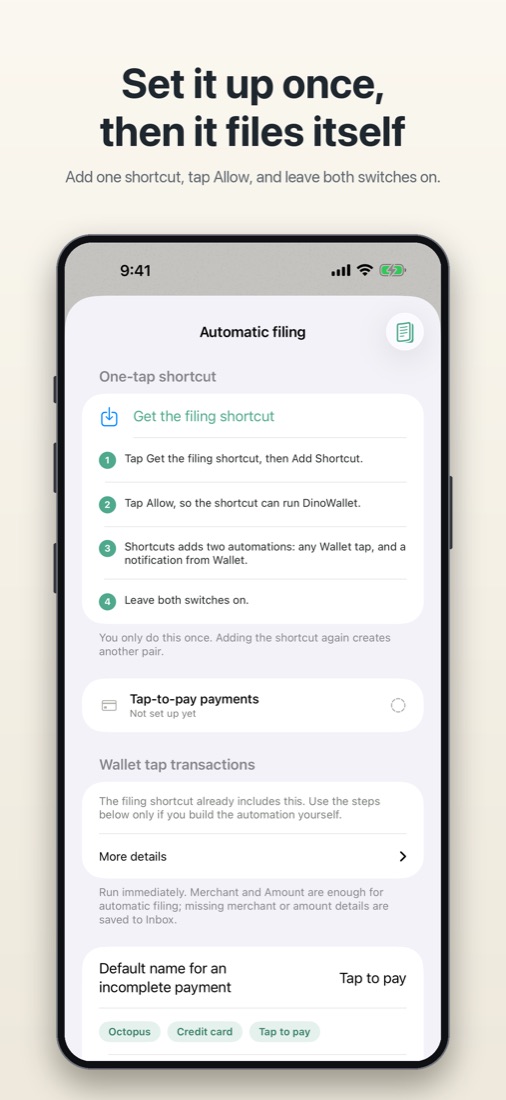
How to set it up
Three shortcuts, added once.
In DinoWallet, open Settings › Automatic filing. Each shortcut is added once, and iOS asks you to allow it the first time it runs. Automatic filing is part of membership.
Apple Pay, Octopus and bank notifications
Wallet shortcut
- Tap Get the filing shortcut, then Add Shortcut.
- Tap the play button. That is when iOS asks you to allow it.
- Tap Allow, so the shortcut can run DinoWallet.
- In Shortcuts › Automation, leave the automations on and turn Notify When Run off — DinoWallet already tells you.
Shortcuts screens in the videos are in Chinese.
Wallet notifications need iOS 27. For another bank, PayMe, Alipay or WeChat, edit the shortcut and tap +. Bank texts are read only from registered senders such as #HSBC, never chats.
Email bills and receipts
Email shortcut
- Tap Get the email shortcut, then Add Shortcut. Choose the mail account.
- Tap the play button, then Allow.
- Limit it to your bills: tap Edit this shortcut, then under “When I get an email” tap Add Filter and add each biller as the sender — CLP, HK Electric, your bank's statements.
- Switch it on: in Shortcuts › Automation, turn on “When I get an email”. Until then, no email is filed.
Shortcuts screens in the videos are in Chinese.
PDF attachments are read. A bill goes to Bills; a receipt is filed as a paid expense. Mail that is neither is ignored. Email rules choose which book and category each sender goes to.
Screenshots
Screenshot shortcut
- Tap Get the screenshot shortcut, then Add Shortcut.
- Tap the play button, then Allow.
- Back in DinoWallet, tap Allow Photos access.
- Open Settings › Accessibility › Touch › Back Tap and set Double Tap to the DinoWallet shortcut.
Shortcuts screens in the videos are in Chinese.
Then screenshot an order confirmation or payment screen and double-tap the back of the phone. DinoWallet tells you when it is filed, items included.
Or add it yourself
Point, say, done.
When it wasn't a card, it takes a second: photograph the receipt or just say what you paid.
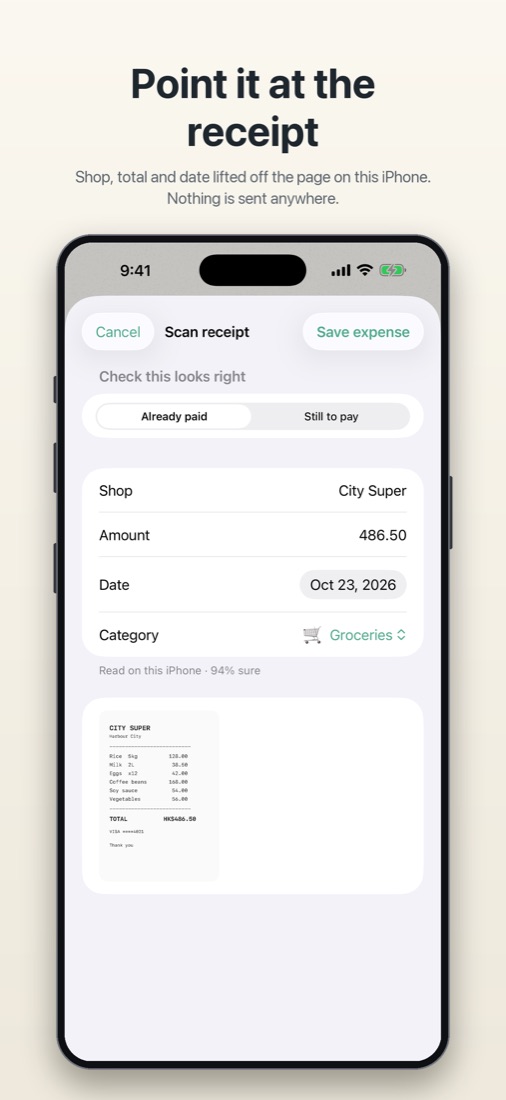
Point it at the receipt
Shop, total and date lifted off the paper or a PDF, right on the phone.
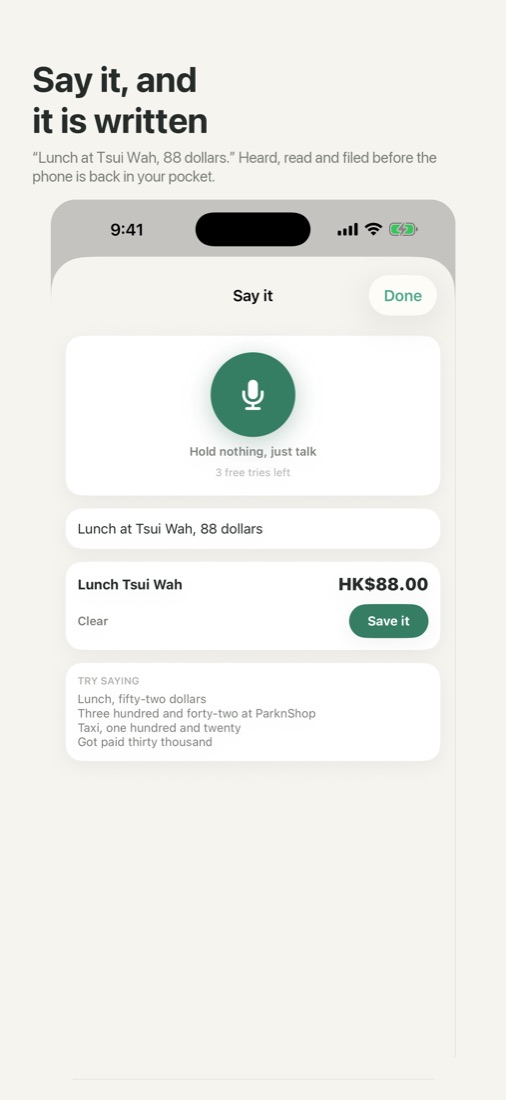
Say it, and it is written
“Lunch at Tsui Wah, 88 dollars.” Heard, read and filed before the phone is back in your pocket.
New · Split with friends
You paid for everyone. It remembers who owes you.
Only your own share counts as spending. Each friend's share is kept as money they owe you, and is cleared when they pay you back.
- Enter the whole billAdd the expense as usual, for example HK$600 for dinner, then turn on Split with friends.
- Add your friendsType their names, or tap a friend you split with before. Split equally, or set each person's amount.
- SaveYour HK$200 is spending. The full HK$600 still comes out of the account you paid with, and Amy and Ben each owe you HK$200 under Friends owe you in Accounts.
- Paid backWhen a friend pays you, open them and tap Paid back. The money goes into the account it arrived in. It is not income, because it was yours already.
Already filed the whole bill from a bank notification? Open that expense and turn on Split with friends.
Categories
Asked once, then it knows.
DinoWallet learns where your money goes, so you are hardly ever asked.
- Your own rules“Contains Apple → Subscriptions.” Rules come first, and well-known names are built in.
- Remembers your answersPick a category for a new shop once; the next payment there files itself.
- Learns your habitsThe on-device AI is shown how you file things, and makes a best guess instead of asking.
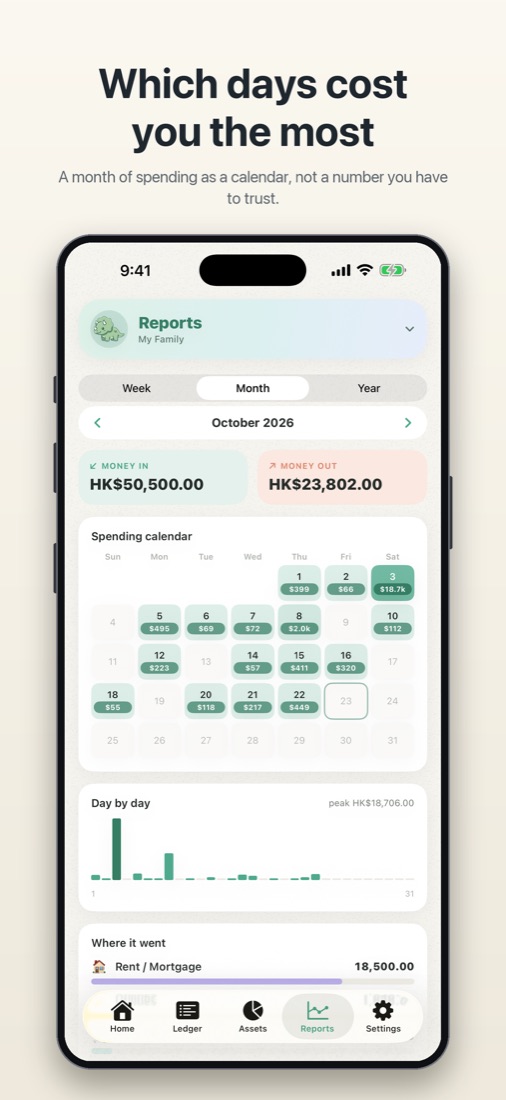
The whole picture
Bills, accounts and net worth.
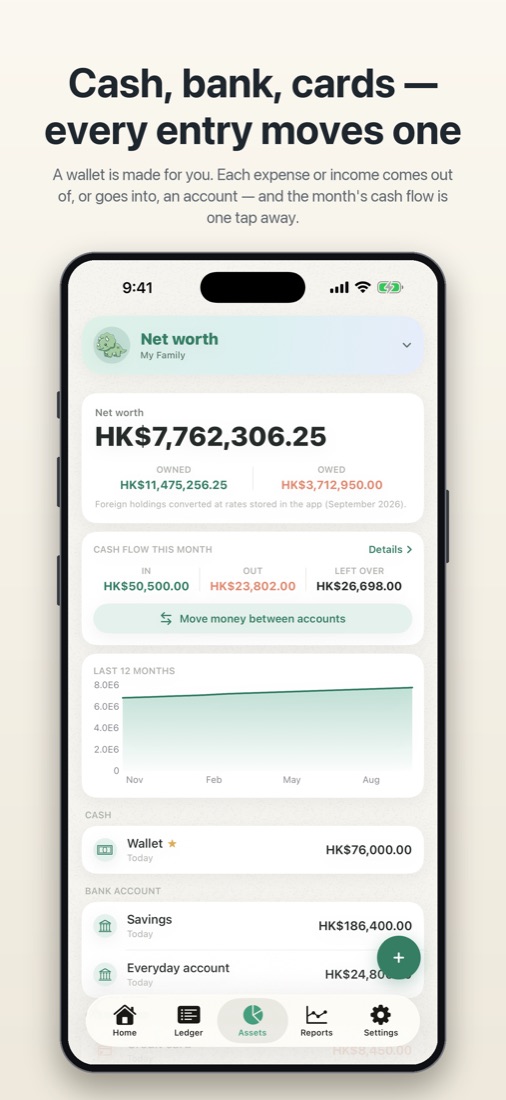
Every expense comes out of an account and every income goes into one, so the balance is always worked out for you.
Cash, bank, cards
Net worth, a month's cash flow, and the full history of every account — even after you correct a balance.
Bills that tick themselves off
Recurring bills and income in any currency, paid by bank transfer or credit card. When the payment arrives, the bill is marked paid — counted once.
On your Home Screen
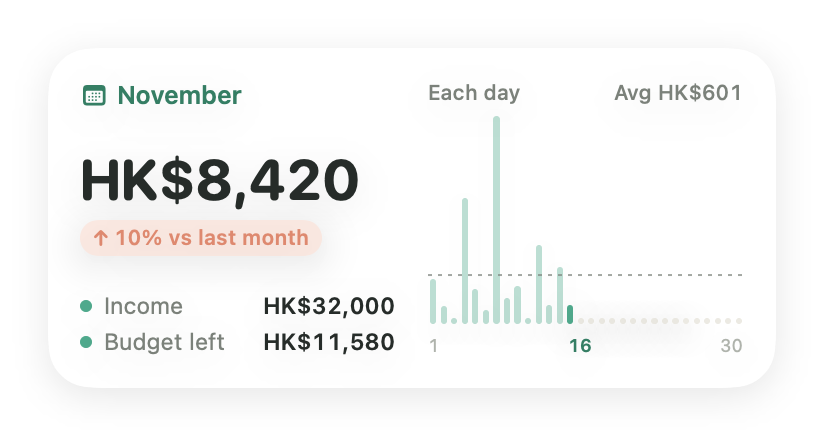
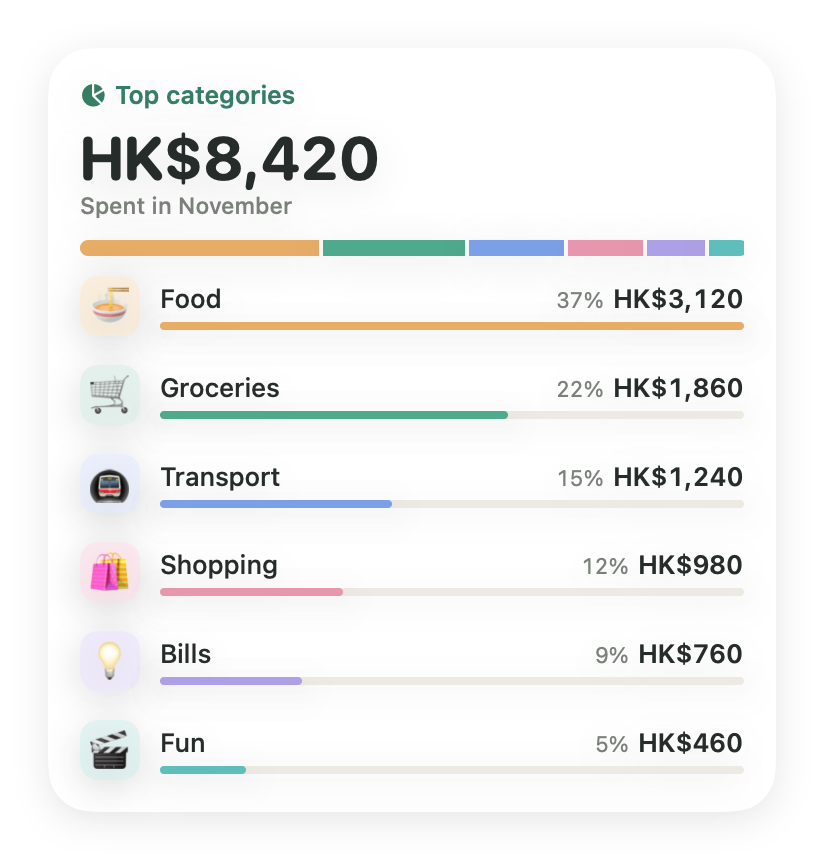
A glance is enough.
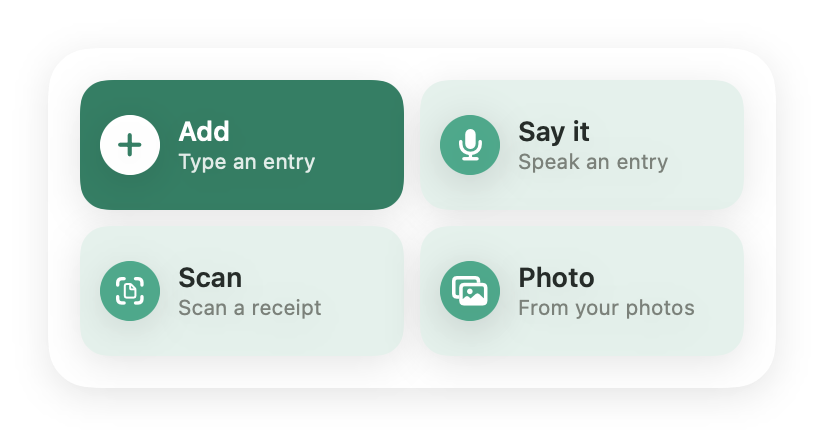
Widgets for today's spending, the month against last month, where the money went, and one-tap buttons to add, speak or scan. In your colour, light or dark.
Private by design
Your money stays on your phone.
No account to make, nothing to sign in to.
Read on the iPhone
Receipts, voice, emails and categories are read on the device, with Apple's own on-device intelligence.
Synced in your iCloud
Your books move between your iPhone and iPad through your own iCloud, and can be shared with family.
Locked when you want
Face ID lock, and widgets that show a padlock instead of figures while it is on.
Stop typing in receipts.
Free to download. Membership adds automatic filing and far more scans and voice entries — monthly, yearly with a 3-day free trial, or a one-time unlock.